April 11, 2025
Haven't Received Your Forms to File? Learn How to Find Them Safely on the IRS Portal
Haven't Received Your Forms to File? Learn How to Find Them Safely on the IRS Portal
If you've received IRS forms through third parties and need to print them for your records or tax purposes, don't worry—the process is quite simple. Here’s how to do it step by step, ensuring you can retrieve your documents without complications.
What Forms Can You Receive from the IRS Portal?
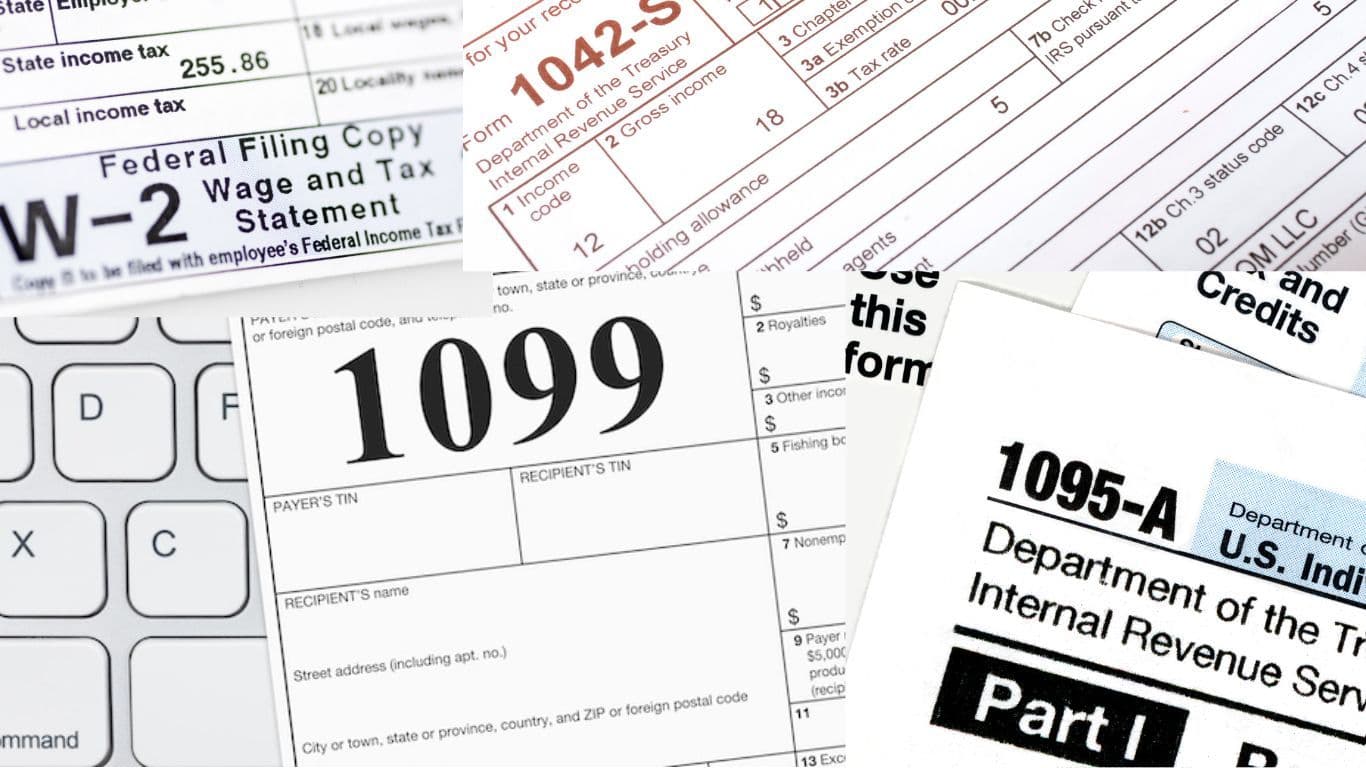
The forms you can receive from third parties are typically essential tax documents, such as:
Form 1099: Used to report income not subject to tax withholding.
Form W-2: Used to report wages and tax withholdings from an employee.
Form 1042-S: For income from foreign non-residents.
Form 1095-A: Used to report health insurance coverage obtained through the Health Insurance Marketplace.
Form 1098: Used to report mortgage interest paid.
Form 5498: Used to report contributions to IRA accounts and other retirement plans.
If You Don’t Have an IRS Profile Created
If you don’t yet have a profile on the IRS portal, I invite you to read this article, which will guide you step by step through creating your account: IRS Profile Creation Guide.
How to Access the IRS Portal
Log in to Your IRS Account Go to the official IRS portal and log in with your credentials. If you don’t have an account, you must create one.
Find the Forms You’ve Received Once inside, follow these detailed steps:
In the "Records and Statements" menu, click on "Informational Returns Documents".
On the "Informational Returns Documents" page, scroll down to find the tax year you want to check.
Click on the appropriate year to access the forms for that year.
How to Print the Forms
Open the PDF on Your Device Once the file is downloaded, open the PDF with any document reader. You can download Adobe Acrobat Reader for free if you don't have one.
Set Up Your Printer Connect your printer to your device, select the "Print" option in the PDF file, and adjust the necessary settings (such as paper size, orientation, etc.).
Print the Form After reviewing the settings, click "Print." To avoid issues with future processes, make sure the printout is clear and legible.
Tips for Keeping Your Forms Organized
Save Electronic Copies In addition to printing the forms, it is recommended that you save electronic copies on your computer or in the cloud as a backup in case you need to review or reprint them later.
Check Print Quality Ensure that the printed forms are legible and that there is no blurry or missing information.
Disclaimer
🛑 Disclaimer: The information presented in this article is general and is provided for informational and educational purposes. At Profit MAS, we offer personalized advice based on each tax situation. For specific guidance, we invite you to contact us directly.
Ready to get started?
Let us be your partner in navigating the complexities of taxes, business, and finances.
Request a Consultation